*Our use of ZOOM or giving instruction on how to set up or use is not intended as an endorsement of ZOOM, but a use of their service to help carry the message and help Compulsive Overeaters be able to join in online meetings.
Virtual meetings can be held via Phone and Zoom which is a virtual video chat on-line. This part of a Tutorial series that will take you through the steps needed.
STEP 1
Here’s How to Open a Free ZOOM Account
Setting up an Account:
Go to https://zoom.us/ and click on the blue button in the top right corner that looks like this…
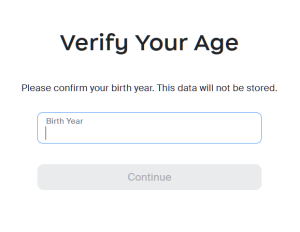
In the box that pops up, you have to verify your age. Input your birth year and click continue…
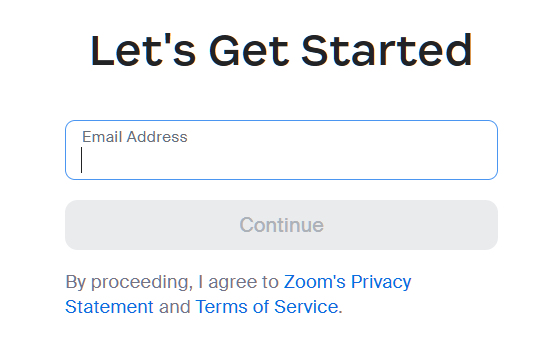
In the box that pops up, Place your email address and click “continue”.
Activating Account:
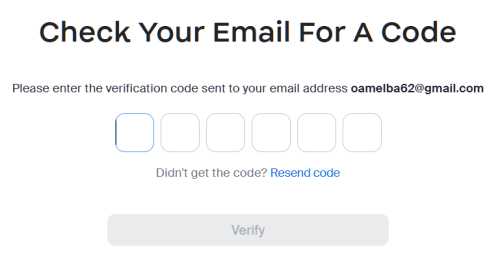
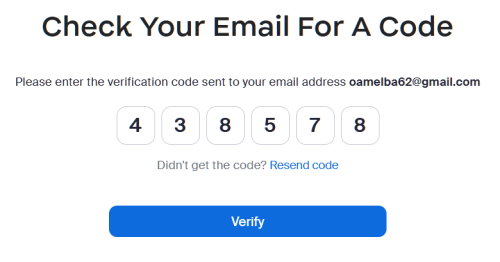
Then a box will pop up asking you to check your email account for a code
You then will have to go to your inbox of your email account you used to sign up. Open the email they sent so you can verify your email. You enter the verification code from your email and place it into the window.
It looks like this but your code will be what they send…
Then click VERIFY….
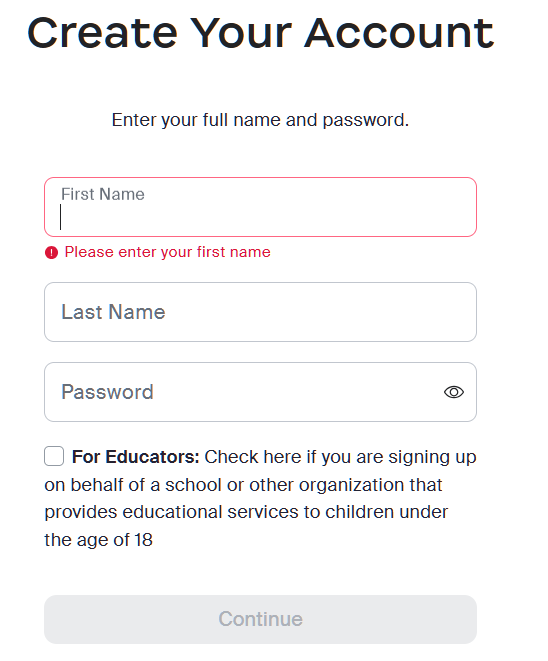
That will take you to a page entitled “Create Your Account”…
Create your account by entering your name and password.
Then Click CONTINUE
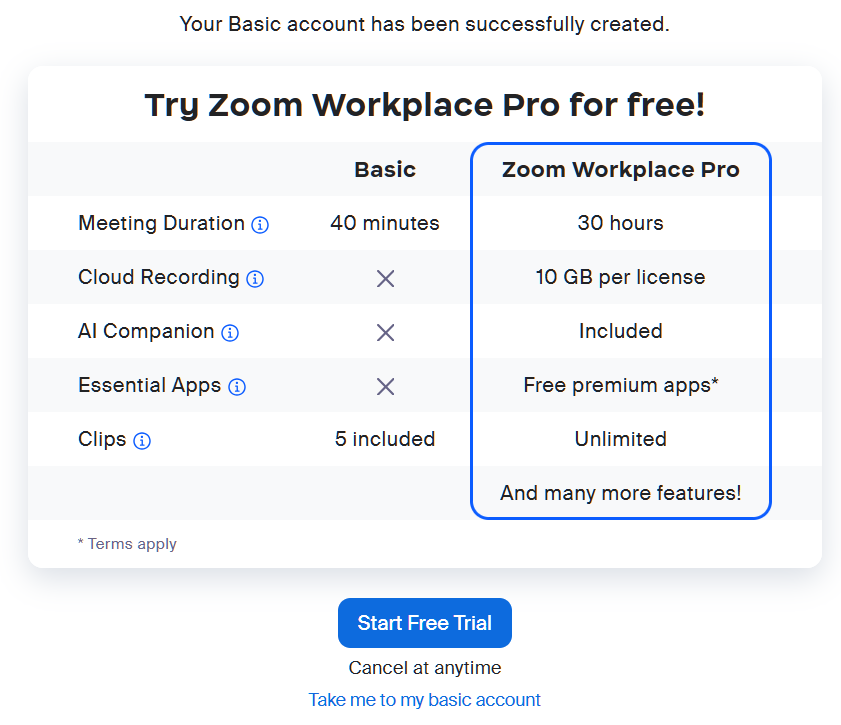
Congratulations, You now have a basic ZOOM Account.
A page like this will appear next, all you do is click at the very bottom where it says…
“Take me to my basic account”
Remember if you have any problems, reach out and email us at convention@oavirtualregion.org