*Our use of ZOOM or giving instruction on how to set up or use is not intended as an endorsement of ZOOM, but a use of their service to help carry the message and help Compulsive Overeaters be able to join in online meetings.
Virtual meetings can be held via Phone and Zoom which is a virtual video chat on-line. This part of a Tutorial series that will take you through the steps needed.
In the last tutorial, you had installed Zoom on your computer/laptop, now let’s learn how to join a meeting….
STEP 3
HOW TO JOIN AN ONLINE MEETING:
Anytime you want to start ZOOM, just click on its icon
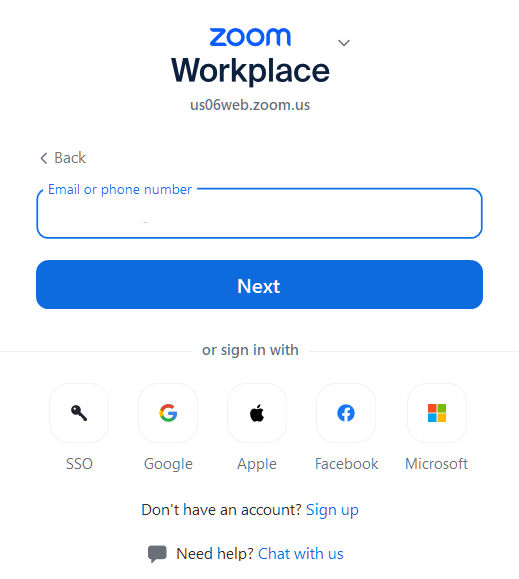
After installing Zoom will open this page to sign in. Use what email you used to make your zoom account .
Click “Next“
(Usually this is saved so you don’t have to do it every time in joining a meeting. When joining a meeting all you will need to do is double-click on the icon and a join page will be shown)
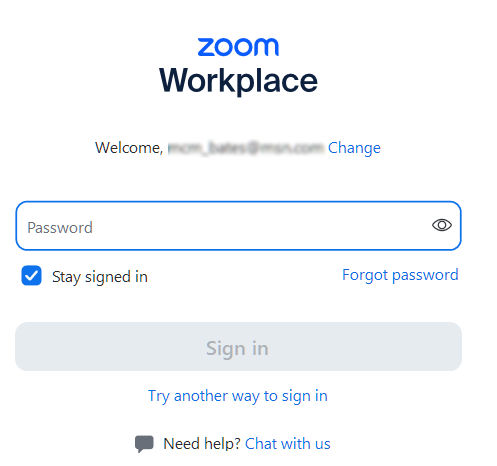
Use what password you used to make your zoom account .
Click “Stay signed in” if your want.
Click “Sign in“
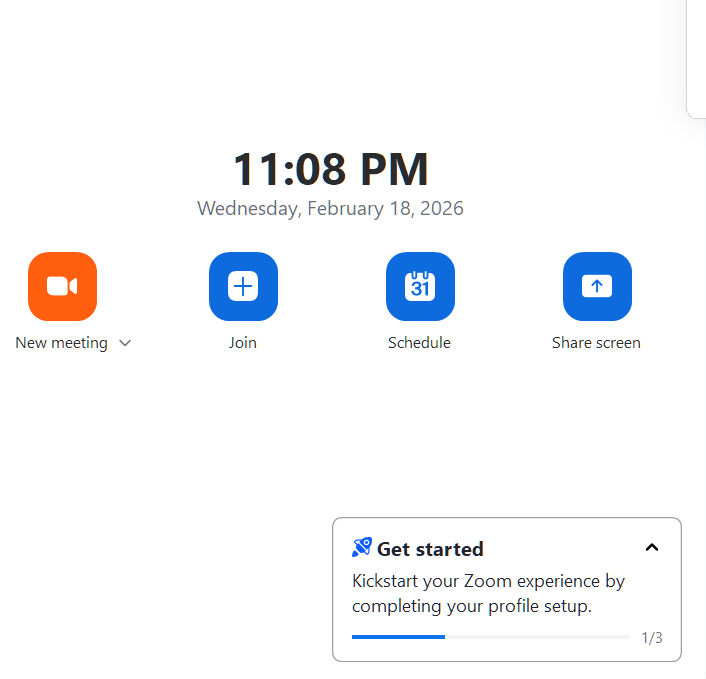
Then this page then will appear. Click on “Join”
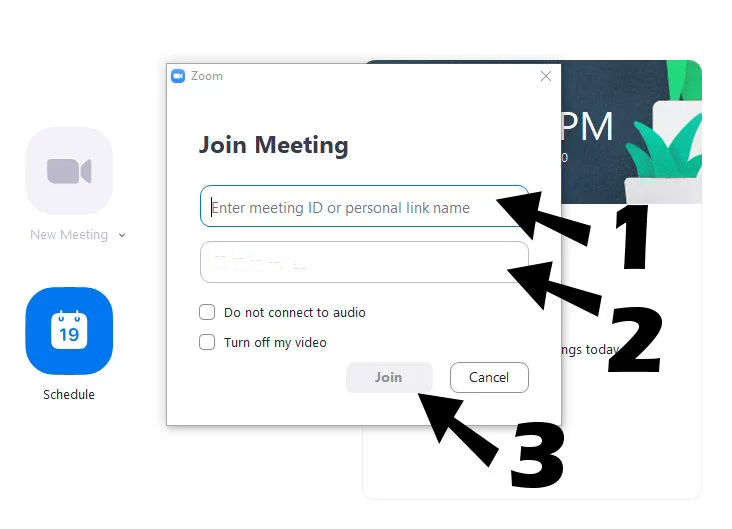
Then you will see a box “Join Meeting”,
1. put in the Meeting ID
2. Make sure you type in name you want to appear on your screen
3. Then Click “Join”
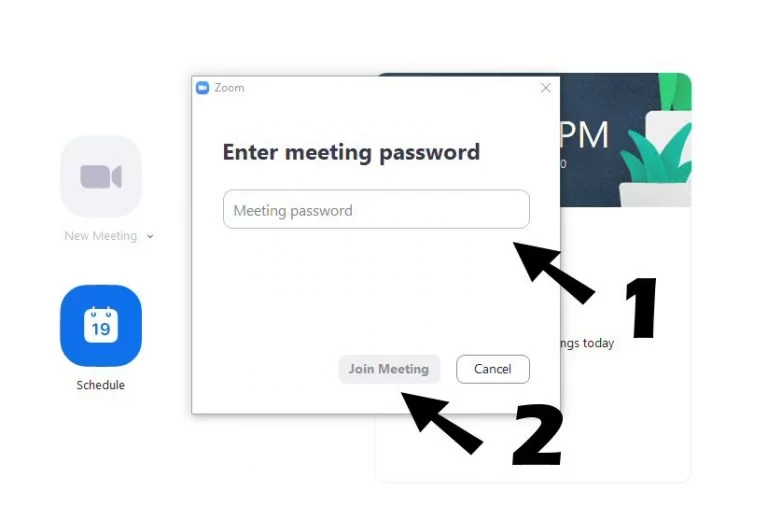
Another box will appear
1. Then you will Enter the Password
2. Click “Join Meeting”
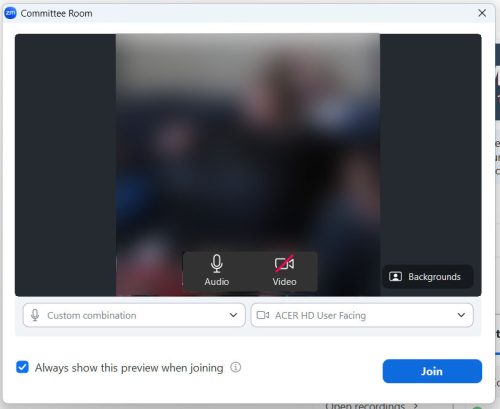
A window will appear showing you your video and an option to turn off your video and or audio. Then Click the blue button “Join“
CONGRATULATIONS,
YOU JUST JOINED A MEETING!!
Remember if you have any problems, reach out and email us at convention@oavirtualregion.org