How Do I Rename Myself in Zoom

How to change your name on your Zoom App

1. Sign in to the Zoom desktop app.

2. Click your profile picture in the top task bar, 

Hint: It is always good to check for zoom updates here…

3. then click Profile..  then click  My profile.

4. By your account profile name, click Edit.

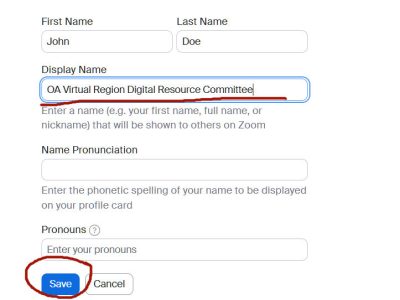
5. Here you will find your name for your account.(usually your full name)/ If you don’t want to use your full name just Edit your Display Name

enter your first name and initial (or however you are to display your name in the meeting) this will be shown to others on Zoom

This will remain for every meeting as a default until it is changed here.

How to change your name on Zoom
when joining a meeting

No matter what your default display name is on your Zoom account, you are able to change your name when Joining any meeting where they have enabled that feature.

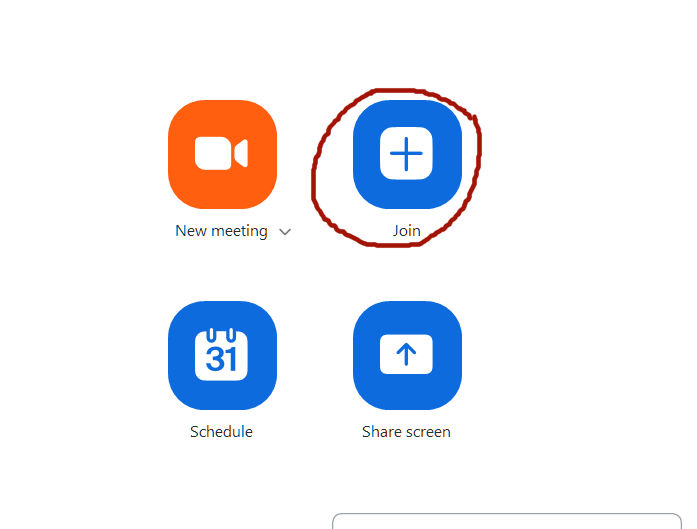
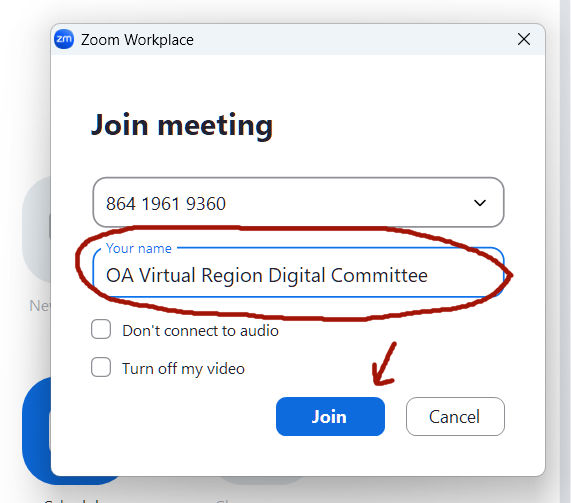
When joining a Zoom meeting (on the desktop app, mobile app, or web app), Click Join

You enter the meeting ID then below you also have the option to update your name. (What appears is what you have made default in your Zoom account). You have an option to change it here for any meeting.

How to change your name on Zoom during a meeting

If you have forgotten to change your name the above 2 ways, if the host has enabled the Allow participants to rename themselves setting, you have the option to rename yourself during a meeting. When hosts disable this setting, you will not see the option to rename yourself.

Join a Zoom meeting on the Zoom desktop app

1. In the meeting, look on  controls toolbar, click Participants .

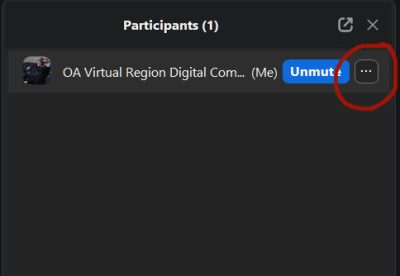
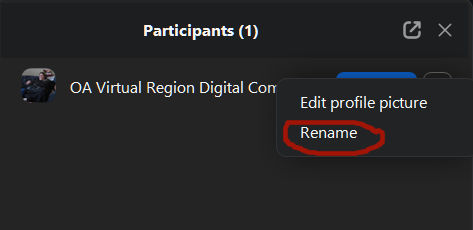
2. Hover your mouse over your name, then click the ellipsis icon .

3. A pop-up box will appear,  Click Rename.

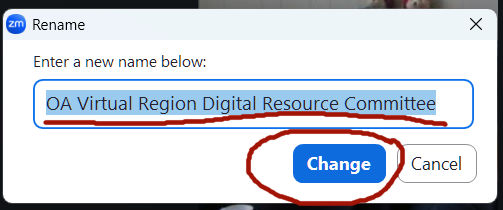
4. In the pop-up box, enter your display name

5. Click Change.

You now have several ways you yourself can change your display name in Zoom.